
 how-to
How to Train Field Staff on New Digital Tools
Table of Contents
- Why Field Staff Training Fails (and What Works Instead)
- Step 1: Assess Training Needs Before You Roll Out Anything
- Step 2: Build Your Employee Software Training Plan Template
- Step 3: Choose Mobile Workforce Training Tools That Fit the Field
- Step 4: Run Hands-On Software Training Exercises That Stick
- Step 5: Apply Software Training Best Practices for Field Teams
- Step 6: Roll Out in Phases and Measure Whether Field Staff Actually Adopt
- Conclusion
- Frequently Asked Questions
Last Updated: October 18, 2026
Why Field Staff Training Fails (and What Works Instead)
Most field technology rollouts fail not because the software is bad, but because the training to train field staff was built for a conference room, not a truck.
To train field staff on new digital tools, start here: training is a field operation, not an HR event.
Three things separate rollouts that stick from rollouts that stall:
- Practice beats presentation. People learn software by tapping through it, not by watching a slideshow.
- Short beats long. Fifteen-minute sessions between jobs beat a half-day off the route.
- Support beats testing. A help line in week two matters more than a passing score in week one.
Below are six steps, from assessing needs to measuring adoption, plus the role-based paths and rollout plan most guides skip.
Step 1: Assess Training Needs Before You Roll Out Anything
A training needs assessment reviews what each role must do in the new tool, what people already know, and where gaps will bite. Skip it and you train everyone on everything, which teaches no one well.
Run the assessment in three passes:
- Task inventory. List the jobs the software must support, like capturing site photos, logging moisture readings, or submitting an adjuster update.
- Skill check. Ask each crew member to rate their comfort with phones, tablets, and apps on a simple scale.
- Constraint check. Note who works in basements, crawlspaces, or rural areas where signal fails.
A common mistake is assessing managers instead of the people doing the work. The tech who photographs a water-damaged wall knows which steps can't be done with gloves on. Ask them first.
Step 2: Build Your Employee Software Training Plan Template
An employee software training plan template maps each role to the tasks they must master, the practice they need, and the date they must be ready. One page per role is enough.
What Goes in the Template
Keep it lean. A workable template covers:
- Role and name so progress is trackable
- Core tasks in the new system, three to five per role
- Practice method for each task, such as a live demo or a supervised run
Role-Based Training Paths for Different Field Jobs
Not everyone needs the same depth. Build separate paths:
- Crew techs: photo capture, time logging, job notes. Heavy on mobile practice.
- Project managers: scheduling, budget views, approvals. Add reporting walkthroughs.
- Office and admin staff: adjuster communication, document uploads, billing handoffs.
Pair each path with a digital confidence level. Confident users can self-serve with short videos. Less confident users need a peer sitting beside them for the first live job.
Step 3: Choose Mobile Workforce Training Tools That Fit the Field
Mobile workforce training tools deliver lessons, practice, and reference material to phones and tablets. The right choice depends on how crews actually work, not feature lists. "Pick an LMS with a mobile app" breaks the moment a tech stands in a basement with no bars and wet gloves.
Score Candidates Against Field Constraints, Not Feature Counts
Build a one-page scorecard rating each candidate 1-5, weighting field constraints heaviest because those kill adoption.
- Offline access. Can lessons, job aids, and reference guides open and complete with no signal, then sync when the device reconnects? Ask the vendor to demonstrate a full lesson in airplane mode, not just describe it.
- Mobile-first design. Buttons sized for gloved hands, one-handed navigation, and forms that survive a dropped connection mid-entry. Test on the oldest phone model your crews carry, not the newest.
- Short formats. Microlearning clips and step-by-step guides that fit a 10-15 minute window between jobs. If a module takes longer than a coffee break, it won't get finished on the route.
Match the Tool Type to the Job
An LMS works for office staff and onboarding records, but field crews often do better with short video training, in-app guidance, and a searchable on-device job aid. Many teams run both, an LMS for compliance, mobile tools for daily practice. Two systems mean two logins and two places to update, so decide which owns the "source of truth" for each task before you buy.
Put Security and Device Management in the Decision
Security belongs in this decision, not a later IT review. Before handing out tablets, confirm how the vendor handles:
- Secure access. Multi-factor login and session timeouts that don't force a re-login every five minutes in the field.
- Data handling. Where customer records and job photos are stored, and whether data is encrypted on the device.
- Lost or stolen devices. Remote wipe and the ability to revoke access without wiping a personal phone in a bring-your-own-device program.
A stolen crew phone should never expose customer records. Write that requirement into the scorecard and make the vendor prove it.
A Quick Comparison Shortlist
Shortlist by category and test one from each:
- Full LMS with a mobile app, best for onboarding records and compliance, weakest for offline field use unless the vendor supports it explicitly.
- Microlearning and video platforms, best for short how-to clips and quick refreshers, lighter on records and sign-off.
- In-app guidance and digital adoption tools, best for teaching inside the actual work tool, but they only help once the person is already logged in.
Most field teams combine two of these; the scorecard makes that combination deliberate, not accidental.
Step 4: Run Hands-On Software Training Exercises That Stick
Hands-on software training exercises are supervised practice runs where a crew member completes a real job task in the system while a coach watches. No slides, no quizzes. Just the task, done for real.
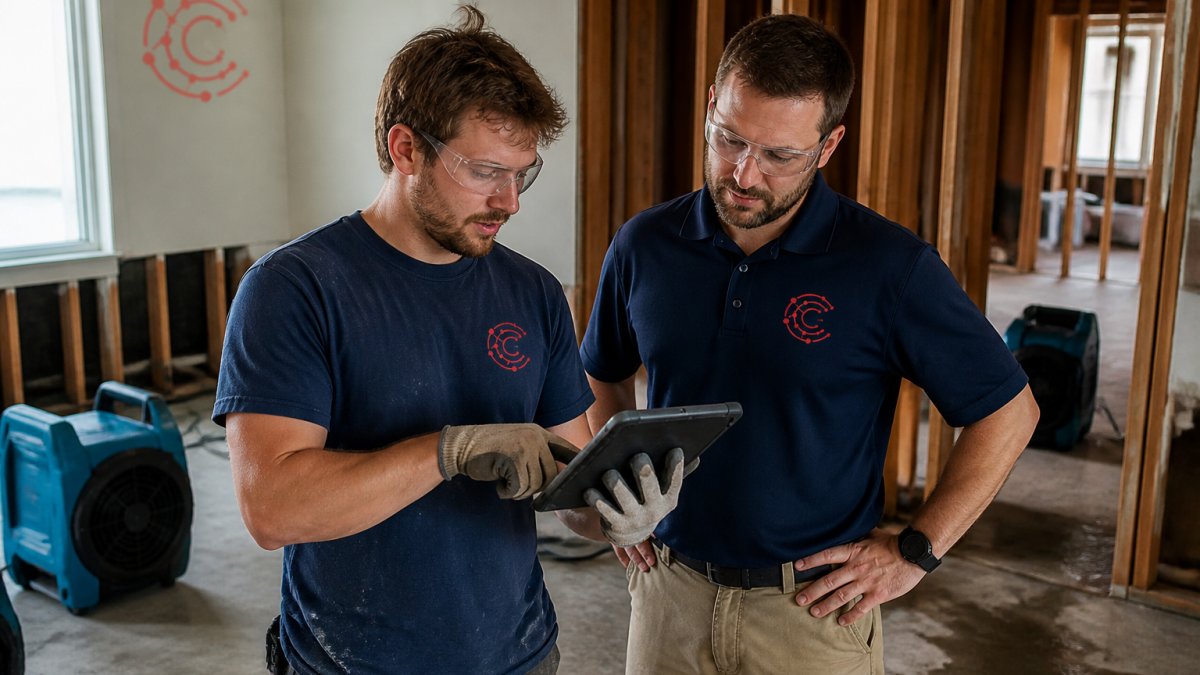
Structure each exercise around one task:
- Set up a practice job with dummy data.
- Have the person capture photos, log readings, and submit a note.
- Watch without interrupting, then correct one thing at a time.
What most guides miss is doing this on a live job with a coach nearby. Real conditions, real pressure, real learning, the first supervised job is where confidence gets built.
Step 5: Apply Software Training Best Practices for Field Teams
Software training best practices for field teams come down to fitting learning into the workday instead of pulling people off the route.
Build these into your rollout:
- Microlearning blocks. Ten to fifteen minutes per session, between jobs.
- Video training. Short clips of the exact tap sequence, filmed on the same device model.
- Peer learning. Pair a confident user with a hesitant one. Crews trust coworkers over trainers.
Name a few technology champions on each crew, the people others already ask for help. Give them extra practice and a direct line to the rollout lead; champions carry adoption further than any external trainer.
Step 6: Roll Out in Phases and Measure Whether Field Staff Actually Adopt
Phased rollout means launching with one pilot crew, fixing what breaks, then expanding crew by crew. Big-bang launches give you a hundred confused users and no clean feedback; sequencing and contingency, not the software, separate rollouts that stick from ones that stall.
Sequence the Rollout in Four Gates
Treat each phase as a gate. Do not advance until the gate criteria are met.
- Pilot (one crew, two weeks). Pick a crew with a mix of digital confidence and at least one technology champion. Run daily 10-minute check-ins. Goal: find the top five friction points, not prove the tool works.
- Fix and document. Before expanding, update the job aids and the role-based training paths based on what the pilot crew hit. Write down the workarounds they invented, those become the official contingency procedures.
- Phase two (two or three crews). Add crews with champions in place and a named support contact. Keep the pilot crew available as peer coaches. Goal: confirm the fixes hold across different job types and signal conditions.
- Full launch. Remaining crews, with a contingency plan for connectivity failures and a fallback paper process that is tested, not just written.
Build the Contingency Before You Need It
A fallback process that lives only in a slide deck fails on the first bad day. Test it during the pilot:
- Connectivity failure. A tech completes the job on paper or in an offline form, then enters it when signal returns. Confirm the sync doesn't create duplicates.
- Device failure. A spare charged device and a shared login process so a dead phone doesn't stop a job.
- Workflow change mid-rollout. A named owner who updates the job aid and notifies crews within a set window, so people aren't learning from stale screenshots.
Measure Adoption with Field-Ready Metrics
Measure adoption with metrics a field supervisor can actually collect:
| Metric | What It Shows | How to Collect | Target Direction |
|---|---|---|---|
| Daily active users | Real usage vs. logins on paper | App analytics, checked weekly | Rising weekly |
| Task completion rate | Whether jobs get finished in the tool | Count completed vs. started tasks | High and steady |
| Time to proficiency | How fast new users work unaided | Time from first login to first unaided job | Shorter each cohort |
| Error rate | Data entry mistakes and rework | Rework tickets and corrections | Falling |
| Support tickets | Where training missed a step | Ticket log by topic | Falling after week two |
| Offline sync failures | Whether field connectivity is breaking the workflow | Sync error log | Falling after pilot fixes |
Track one more thing: employee confidence. A quick weekly check-in question ("how sure do you feel using the app today?") catches problems before they show up in error rates. Pair it with a short task observation, watch one crew member complete one real task per week and note where they hesitate.
Turn the Numbers into Decisions
Metrics only matter if they trigger action. Set simple rules before launch:
- If daily active users stall for two weeks, add practice time and peer coaching before adding more crews.
- If error rates rise after a phase, check whether the job aid matches the current workflow.
- If support tickets cluster on one task, rewrite that lesson and re-run the hands-on exercise for the affected crews.
A rollout plan with gates, tested contingencies, and decision rules turns a training event into a program that keeps improving after launch.
Conclusion
Training a field crew on new software is a rollout problem with a training solution: assess real tasks, build role-based paths, practice on live jobs, and expand in phases with champions on every crew.
Cortex by JobDox was built for exactly this fieldwork. Automated setup builds workflows from a plain-English description, so new tools match how your crews already work.
Start a 14-day free trial and train your first crew on a system built for the field.
Frequently Asked Questions
How long should software training for field staff take?
Plan for short, repeated sessions rather than one long class. A practical structure is a 45-60 minute kickoff covering the core workflow, then 15-20 minute sessions each week for the first month, plus on-the-job practice between them. Field staff retain more from three short sessions on separate days than from a single half-day training. Time to proficiency depends on the tool and the person's digital confidence, so build in extra practice for anyone who struggles with smartphones or tablets.
How do you get field employees to actually adopt new technology?
Make the tool the only way to do the task, and make it faster than the old method. If crews can still text photos to the office and fill out paper forms, they will. Pair that with peer champions on each crew, quick wins in the first two weeks, and visible follow-through from managers who check the app instead of asking for updates by phone. Adoption follows when the tool removes work rather than adding it.
How do you measure whether employees are using new software effectively?
Track completion rate, time to proficiency, and error reduction rather than logins alone. Useful field-ready metrics include the percentage of jobs documented in the app within 24 hours, photo and note completeness per job, how often staff need help desk support, and how long it takes a new hire to close out a job unaided. Compare those numbers before and after rollout, and review them with crew leads weekly for the first month.
What should a software training plan template include for field teams?
A workable template covers learning objectives tied to specific job tasks, a role-based training path for each field position, a session schedule with short modules, hands-on practice scenarios using real jobs, a list of who provides support and how to reach them, and adoption metrics with review dates. Add a contingency section for offline access and device issues. Keep it to two pages so supervisors actually use it.