 Listicle
7 Best Ways to Organize Digital Restoration Project Files
Last Updated: November 18, 2026
Quick Summary
The best ways to organize digital restoration project files start with a storage audit, then a numbered folder hierarchy that mirrors the job workflow: intake, mitigation, drying, reconstruction, adjuster, and closeout. Add date-first filenames, separate active from completed work, and preserve metadata and originals for defensible records.
- Audit every storage location and flag single-person access and duplicates before moving any file.
- Number folders 01_Intake through 06_Closeout so they stay in workflow order.
- Name files YYYY-MM-DD_ProjectName_DocType so dates sort correctly on their own.
- Split storage into Active, Completed, and Archive zones so closed jobs never mix with today's work.
- Keep untouched originals in an _originals subfolder and work only from copies.
Table of Contents
- Why Restoration Project Files Fall Apart (and What It Costs)
- Method 1: Audit Every Storage Location Before You Move Anything
- Method 2: Build a Folder Hierarchy That Matches the Job
- Method 3: Apply Digital File Organization Best Practices to Naming and Dates
- Method 4: Run a Digital File Organization System That Separates Active From Completed Work
- Method 5: Choose Digital File Organization System Software That Fits Your Crew
- Method 6: Learn How to Organize Digital Documents With Metadata and Version Control
- Method 7: Clean Up Duplicates and Protect Files With Backups and Access Rules
- Frequently Asked Questions
Why Restoration Project Files Fall Apart (and What It Costs)
Most restoration companies don't have a file problem. They have a findability problem, and it shows up at the worst possible moment: the day an adjuster asks for the drying log from day three, and nobody can locate it.
A restoration project file is the complete record of a job: moisture readings, photos, estimates, scope sheets, adjuster correspondence, signed authorizations, and invoices.
This guide breaks the fix into seven methods. Each one is practical, and each one builds on the last.
Method 1: Audit Every Storage Location Before You Move Anything
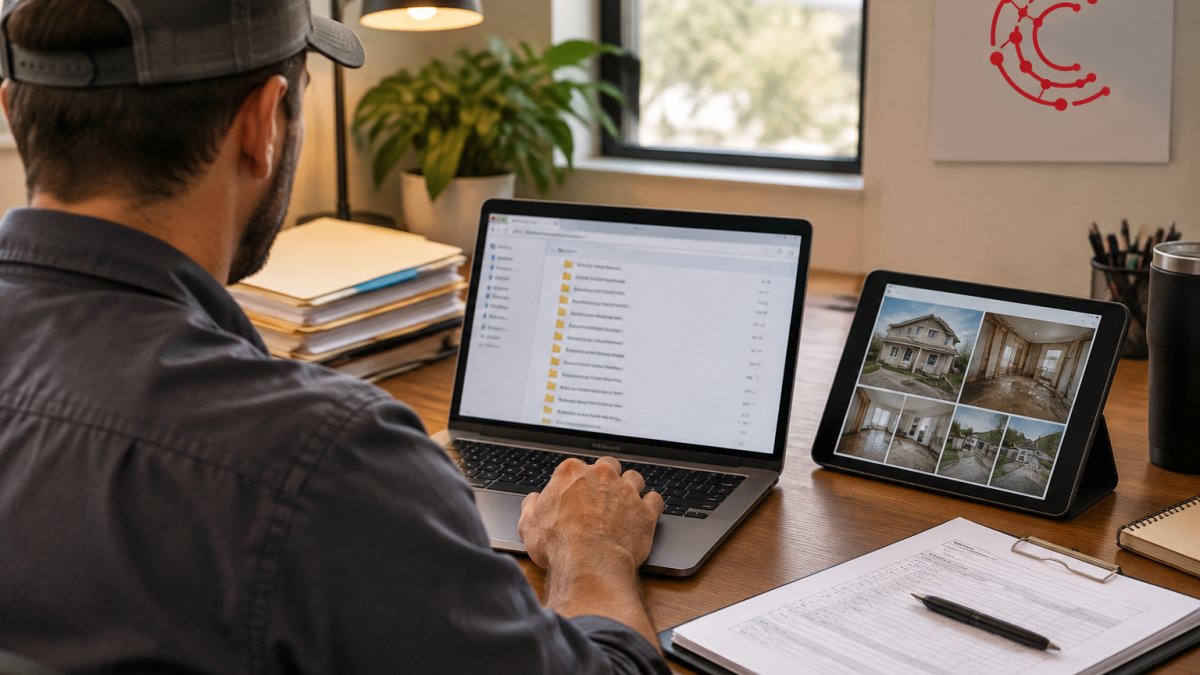
The biggest mistake in file cleanup is reorganizing before you know what you have. Start with a storage audit: list every place a project file currently lives, shared drives, cloud storage, phones, tablets, email attachments, and forgotten desktop folders.
Walk through it in order:
- List every storage location and who uses it.
- Count roughly how many project folders exist in each.
- Flag anything that only one person can access.
- Note duplicate projects stored in more than one place.
- Mark old jobs that should already be archived.
Don't move a single file yet. The audit tells you the scale of the mess, and it usually surprises people. It's also a chain of custody check: if you can't trace where a photo or signed document has been stored, you have a documentation gap worth fixing before a claim dispute finds it.
Method 2: Build a Folder Hierarchy That Matches the Job
A folder hierarchy should mirror how a restoration job actually runs, not how your file system happens to be arranged. Build it around the workflow stages your crew already follows: intake, mitigation, drying, reconstruction, and closeout, so anyone can open an unfamiliar project and know where the drying log lives.
A Starter Folder Structure for Restoration Jobs
- 01_Intake, signed authorization, initial photos, insurance details, client contact sheet
- 02_Mitigation, demo photos, moisture maps, equipment logs, condition reports
- 03_Drying, daily readings, drying logs, monitoring photos, treatment records
Numbering the folders keeps them in workflow order and stops the "misc" folder from becoming a junk drawer. The _originals, _versions, and _scan-log folders sit outside the numbered sequence because they support the whole project rather than one stage.
Keep Restoration Records Together, Not Scattered by Type
Generic filing advice says to group all photos in one place and all invoices in another. For restoration work, that's usually wrong. A condition report, its supporting photos, the treatment record, and the invoice that bills for the treatment belong together, because that's how an adjuster or client will review them.
Before-and-after image pairs deserve their own convention. Store the pair in the same stage folder with matching filenames and a _before or _after suffix, so the comparison is obvious without opening either file.
Choose Durable Formats for Long-Term Preservation
Project files need to remain readable beyond the life of a device or software product. Favor widely supported, open formats: PDF/A for finalized documents, TIFF or high-quality JPEG for evidentiary images, and plain text or CSV for logs. Avoid proprietary formats, and schedule an annual migration check to confirm older files still open and metadata survived the last system change.
A Project Handoff Checklist
The handoff between stages is where documentation quietly breaks down. When a job moves from mitigation to reconstruction, or from active to completed, run a short checklist:
- All stage photos uploaded, with originals preserved
- Condition reports and treatment records signed and filed
- Adjuster approvals and supplements saved in
05_Adjuster
If your crews coordinate subs and handoffs regularly, this is the same discipline that keeps subcontractor coordination clean, applied to the file system. A handoff checklist that lives in the project folder, not in someone's head, is what makes the hierarchy survive a busy week.
The starter structure numbers each workflow stage so anyone can find the drying log in an unfamiliar project.
| Folder | What goes in it |
|---|---|
| 01_Intake | Signed authorization, initial photos, insurance details, client contact sheet |
| 02_Mitigation | Demo photos, moisture maps, equipment logs, condition reports |
| 03_Drying | Daily readings, drying logs, monitoring photos, treatment records |
| 04_Reconstruction | Scope sheets, material lists, progress photos, before-and-after pairs |
| 05_Adjuster | Correspondence, approvals, supplements, denials, invoices |
| 06_Closeout | Final invoice, signed completion, warranty documents, audit-trail export |
| _originals | Untouched captures and scans, kept separate from working copies |
| _versions | Superseded estimates and scope sheets, retained for revision history |
Method 3: Apply Digital File Organization Best Practices to Naming and Dates
Digital file organization best practices come down to one rule: a filename should tell you what's inside without opening it. Use a consistent convention with the date first, then the project, then the document type.
The format we recommend: YYYY-MM-DD_ProjectName_DocType. So a moisture reading from a job at 42 Oak Street becomes 2026-03-14_OakSt_MoistureLog. Dates in year-month-day order sort correctly on their own, which matters when a folder holds hundreds of photos.
Naming Convention Checklist
- Date first, always in YYYY-MM-DD format
- Project identifier or address, abbreviated consistently
- Document type (Photo, Estimate, Log, Approval)
A descriptive filename is the cheapest search tool you own. It also survives a move between systems, which file extensions and folder paths do not.
Method 4: Run a Digital File Organization System That Separates Active From Completed Work
A digital file organization system only works if active projects and finished jobs never share the same space. Mixing them is how crews waste ten minutes scrolling past closed jobs to find today's work.
Split your storage into three zones: Active, Completed, and Archive. Active holds jobs in progress. Completed holds jobs closed in the current year, still within easy reach for warranty calls and adjuster follow-ups. Archive holds everything older, moved out on a set schedule.
When a job closes, the file needs a final check: all photos uploaded, all adjuster approvals saved, final invoice attached. If your crews coordinate subs and handoffs regularly, this is the same discipline that keeps subcontractor coordination clean, applied to the file system.
Method 5: Choose Digital File Organization System Software That Fits Your Crew
Digital file organization system software should fit the crew you have, not the crew a vendor imagines. Two questions decide most of it: can your field techs upload from a phone in the field, and can your admin find a document in under a minute?
Cloud storage platforms like Dropbox, Google Drive, and Box all handle shared project folders and version history. If you're weighing options, our guide to the best software for restoration contractors compares project management, estimating, and insurance tools side by side, and our breakdown of the benefits of cloud software for small trade businesses covers costs and selection tips.
For teams that want documentation to happen automatically rather than as a separate chore, Cortex by JobDox builds workflows from a plain-English description of how you already work. Files attach to the job, not to someone's inbox.
Method 6: Learn How to Organize Digital Documents With Metadata and Version Control
Knowing how to organize digital documents well means going beyond folders. Metadata is the information stored inside a file: the date a photo was taken, the device that captured it, the resolution, and the job it belongs to. For restoration work, metadata is not a nice-to-have. It is the part of the record that proves when evidence was captured, not just when someone filed it.
Preserve the Metadata You Already Have
The most common metadata mistake is destroying it during cleanup. Renaming a photo is fine; stripping its embedded capture data is not. When you export, resize, or convert images, check whether the tool preserves EXIF data and the color profile.
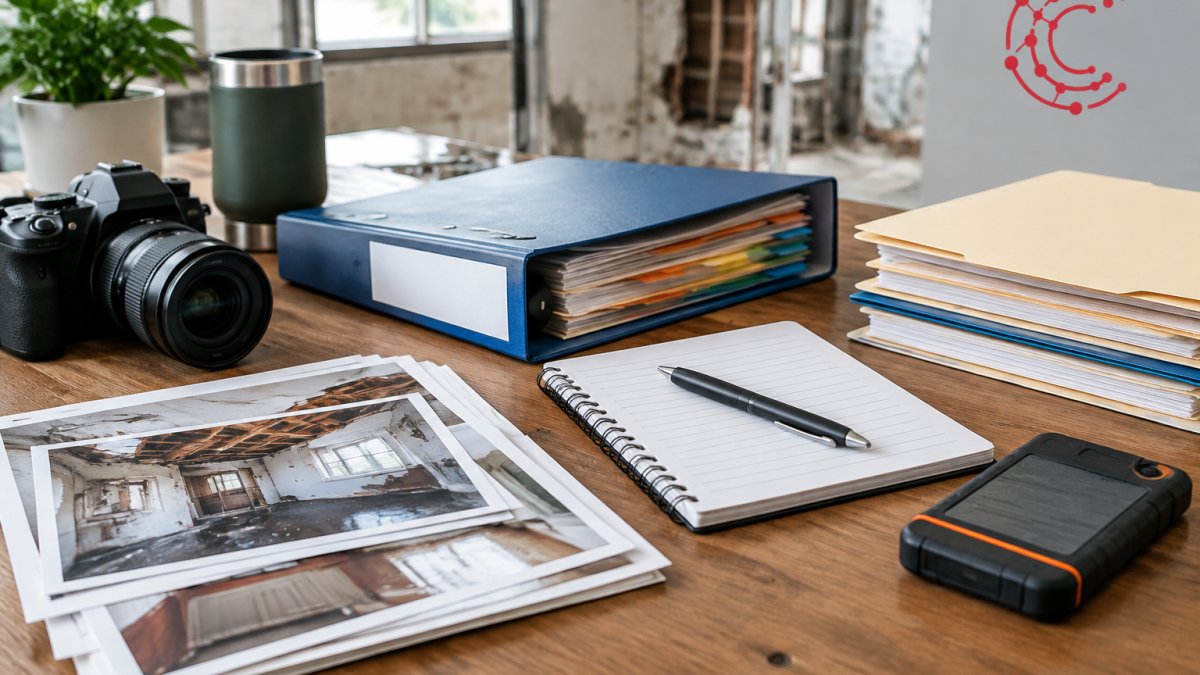
A practical rule: keep the original file untouched in an _originals subfolder and work from copies. The original carries the capture timestamp, camera or scanner model, resolution, and color profile.
Record Scanner and Capture Details
For scanned documents, signed authorizations, adjuster letters, paper moisture logs, record the scanner settings alongside the file. A simple _scan-log text file in each project folder can note the scanner model, resolution, color mode, and date of capture. This matters when a document's legibility or authenticity is questioned later; a one-line log entry per scan batch is enough. The goal is traceability, not a lab report.
Add Descriptive Metadata That Survives a Move
Embedded metadata travels with the file; folder-based metadata does not. Where your tools allow it, add descriptive fields inside the file: project identifier, address or job number, document type, and the crew member who captured it.
Watch out: some cloud sync tools and photo editors silently rewrite or drop metadata on upload. Test one file end-to-end before you trust a new tool with a project's evidence.
Version Control for Estimates and Scope Sheets
Version control matters most for estimates and scope sheets, which change constantly as supplements are approved and denials are appealed. Keep one current version in the project folder and move older versions to a _versions subfolder rather than overwriting them.
A simple version log, a running text file listing each revision, its date, and a one-line reason for the change, is often more useful than filenames alone. It gives you a defensible narrative of how the project record evolved.
Chain of Custody and Audit Trails
Metadata is half of traceability; the other half is a record of who accessed, edited, transferred, or approved a file. For projects where records may need to be defensible, insurance disputes, client complaints, or culturally sensitive materials, keep a lightweight audit trail.
To take this further, our guide on how to automate restoration project documentation shows how digital forms, cloud storage, and AI tools cut errors and keep records audit-ready.
Method 7: Clean Up Duplicates and Protect Files With Backups and Access Rules
Duplicate files and obsolete versions pile up faster than anyone expects.
Backups are the other half of protection.
Clean, protected records also move claims faster. Our seven-step guide on how to speed up insurance claim documentation shows how structured workflows reduce processing time.
Restoration files fall apart quietly, one rushed upload at a time, until a claim depends on records nobody can find.
Frequently Asked Questions
What is an effective way to organize digital files for restoration jobs?
Start with one centralized repository, then build a folder hierarchy that mirrors each job: project number, client name, then subfolders for photos, estimates, invoices, and adjuster correspondence. Use a consistent naming convention with dates and descriptive identifiers so files sort predictably. Separate active jobs from completed ones, and archive finished projects rather than deleting them. Review the structure every quarter so it stays consistent as your crew and job volume grow.
How should you name restoration project files so they are easy to find?
Use a repeatable pattern: project number, date in year-month-day format, document type, and a short description. For example, a moisture reading from a job might read 2451-2026-03-14-moisture-reading-kitchen. Keep names short enough to scan, avoid spaces and special characters, and never use vague labels like final or new. The same convention should apply to photos, estimates, and invoices so search and sorting work the same way across every folder and every crew member.
What is the best program to organize restoration project files?
It depends on whether you need storage or operational workflow. Cloud storage tools like Google Drive, Dropbox, and Box handle shared folders and central storage well. Dedicated restoration platforms add job documentation, budget tracking, and adjuster communication on top of file storage. Cortex by JobDox is built for restoration contractors and adds automated documentation and AI-assisted budget predictions, with a free trial available. Match the tool to your biggest bottleneck: storage, documentation, or billing recovery.
How often should restoration project files be backed up?
Back up continuously if you use cloud storage with version history, and run a full redundant copy at least weekly to a separate location or account. Before any major cleanup or reorganization, take a complete backup so you can restore files if something is misfiled or deleted. Test a restore every few months; a backup you have never restored is an assumption, not a safeguard. Keep completed project archives in a second location as well.
How can a team keep digital project files organized throughout a restoration job?
Assign one person to own the file structure and document the rules in a short written guide. Set the expectation that photos, estimates, and adjuster emails go into the project folder the same day they are created, not at job close. Use version control for estimates and scopes so revisions are traceable. Run a quick weekly check for stray files in downloads or desktop folders, and fold them back into the project structure before they pile up.